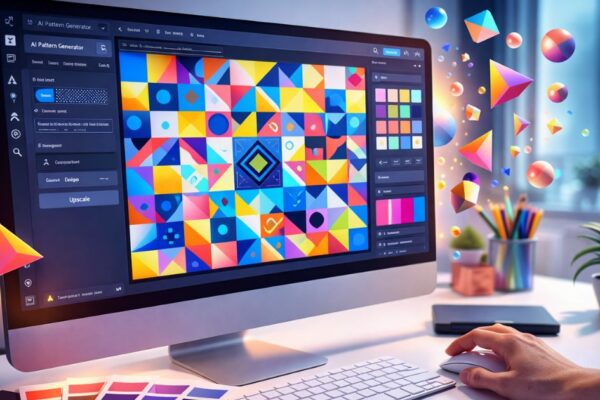
Your next design masterpiece starts here: AI pattern secrets revealed.
Creating visually stunning patterns is one of the most exciting aspects of AI-powered design. Whether you’re a beginner or an experienced designer, learning how to make a pattern in AI can transform your digital projects, from social media graphics to professional prints. In this guide, we’ll uncover step-by-step techniques, tips, and insider secrets that designers rarely share.
Why AI Patterns Are a Game-Changer
Traditional design methods for patterns can be time-consuming and repetitive. With AI, you can:
- Generate endless variations in minutes
- Experiment with colors, shapes, and textures
- Focus on creativity rather than tedious manual work
AI-powered tools like Adobe Firefly, Canva’s AI features, and MidJourney make pattern creation faster, smarter, and more accessible.
Step 1: Choose the Right AI Tool
Before you start designing, you need the right AI platform. Popular options include:
- Adobe Firefly – Best for high-quality, editable vector patterns
- Canva AI – Beginner-friendly, ideal for social media graphics
- MidJourney or DALL·E – Excellent for artistic, unique, or abstract patterns
Selecting the right tool depends on your design goal, style, and skill level.
Step 2: Define Your Pattern Concept
Every successful pattern starts with a clear concept. Ask yourself:
- What is the purpose of the pattern? (Textile, digital backgrounds, social media?)
- What style are you aiming for? (Geometric, abstract, floral, minimalist?)
- What colors and shapes will reflect the brand or mood?
Having a strong concept saves time and ensures your AI-generated pattern is cohesive and visually appealing.
Step 3: Start Generating Base Patterns
Most AI tools allow you to input a prompt or seed design. Use your concept to guide the AI. For example:
- “Generate a continuous geometric pattern in gentle pastel tones featuring interlocking triangles for a modern, seamless look”
- “Create a seamless minimalist floral pattern featuring gentle gradients for a soft, elegant look.”
Tips for natural AI pattern generation:
- Use descriptive adjectives
- Include repetition or symmetry cues
- Specify the output format (vector, PNG, or seamless tile)
Step 4: Refine and Customize Your Pattern
AI patterns are rarely perfect on the first try. Refine by:
- Adjusting shapes, spacing, or colors manually
- Using layering techniques in software like Illustrator or Photoshop
- Combining multiple AI-generated patterns to create unique compositions
This step separates a generic AI design from a truly professional, eye-catching pattern.
Step 5: Test for Repetition and Seamlessness
Seamless patterns are key for backgrounds, fabrics, or wallpapers. Check:
- Edges – Ensure the design repeats without noticeable seams
- Scale – Test the pattern at different sizes
- Contrast – Make sure elements are balanced and readable
Many AI tools have built-in “seamless pattern” or “tileable” options — use them to save time and maintain quality.
Step 6: Optimize for Your Platform
Depending on your final use, optimize the pattern:
- Print – High-resolution, CMYK colors
- Digital – RGB colors, optimized file size
- Web – Compressed PNG or SVG for fast loading
Optimizing ensures your patterns look perfect and load efficiently, whether for social media, website backgrounds, or physical products.
Advanced Tips: Secrets Designers Don’t Tell You
1. Layer AI with Manual Adjustments
Even advanced AI designs benefit from human tweaking. Adjust shapes, transparency, or gradients for unique aesthetics.
2. Mix Multiple AI Outputs
Generate 3–5 AI versions of the same prompt and combine them. This creates a hybrid pattern that no one else has.
3. Use Color Palettes Strategically
Designers often start with pre-defined color palettes. AI can adapt patterns to match these palettes for a consistent brand or theme.
4. Incorporate Randomness
Slight randomness makes patterns feel natural. Adjust element size, spacing, or rotation to avoid repetitive monotony.
Common Mistakes to Avoid
- Overloading patterns with too many elements
- Relying solely on AI without refinement
- Ignoring seamless testing
- Using low-resolution outputs for print
Avoiding these ensures your AI patterns look professional and polished.
Applications of AI Patterns
Patterns are versatile and highly useful across creative projects:
- Textile & Fashion Design – Craft one-of-a-kind fabric patterns for standout creations.
- Social Media Graphics – Eye-catching backgrounds and visuals
- Web & App Design – Decorative UI elements
- Printables & Stationery – Greeting cards, journals, wallpapers
AI patterns save hours of repetitive work while keeping designs fresh and unique.
Recommended AI Tools for Pattern Making
| Tool | Strength | Best For |
|---|---|---|
| Adobe Firefly | Vector editing + high-quality output | Professional design |
| Canva AI | User-friendly, pre-made templates | Beginners & social media |
| MidJourney / DALL·E | Artistic & abstract patterns | Creative/artistic projects |
How to Make a Pattern in AI: Step-by-Step Recap
- Choose the right AI tool
- Define your pattern concept
- Generate base patterns using detailed prompts
- Refine shapes, colors, and layers manually
- Test for repetition, seamlessness, and scale
- Optimize output for your platform
Following these steps guarantees patterns that look professional, eye-catching, and unique.
External Links for Learning & Inspiration
- Official Adobe Firefly AI tools
- Expert pattern design tips on Canva Blog
- Creative AI inspiration from MidJourney Gallery
Final Thoughts
Learning how to make a pattern in AI isn’t just about generating visuals — it’s about combining creativity with technology. AI accelerates design, but human input refines it.
By understanding prompts, layering, color strategy, and seamless testing, you can create stunning, professional patterns that captivate your audience.
Whether for print, web, or social media, AI patterns are now accessible to everyone, making design faster, smarter, and more innovative than ever.